William Thorup

Illustrator, Motion Graphics Designer, Animator, and VFX Artist

Tag: tutorial

  • Iron Door Film | Concept Art

    Iron Door Film | Concept Art

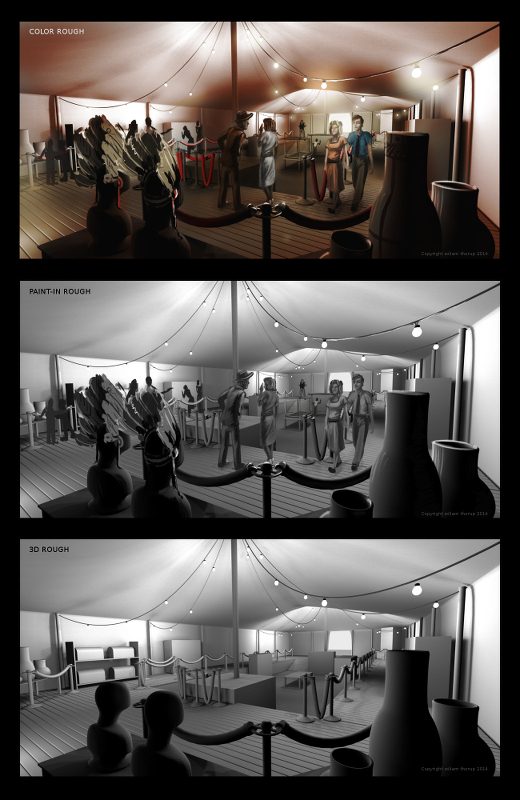
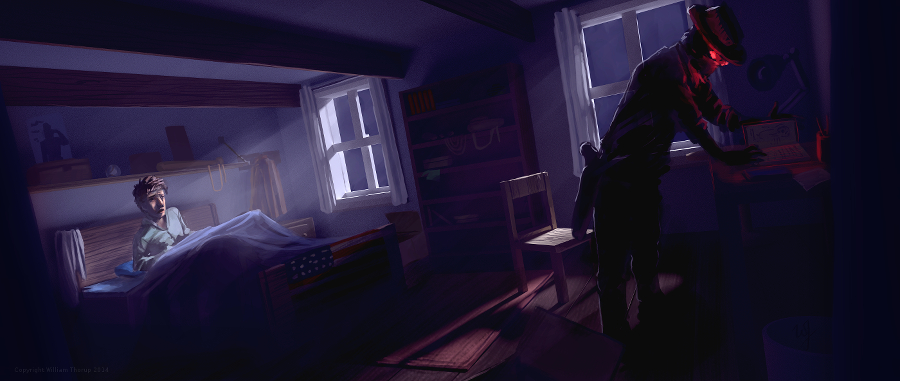
    Through Thor Media, I was tasked with producing 3 pieces of concept art for our client, Adaptive Studios. The pieces were based on a semi-final script, with some direction from the director, and director of photography.

    traveling exhibit_web

    [column-group]
    [column]

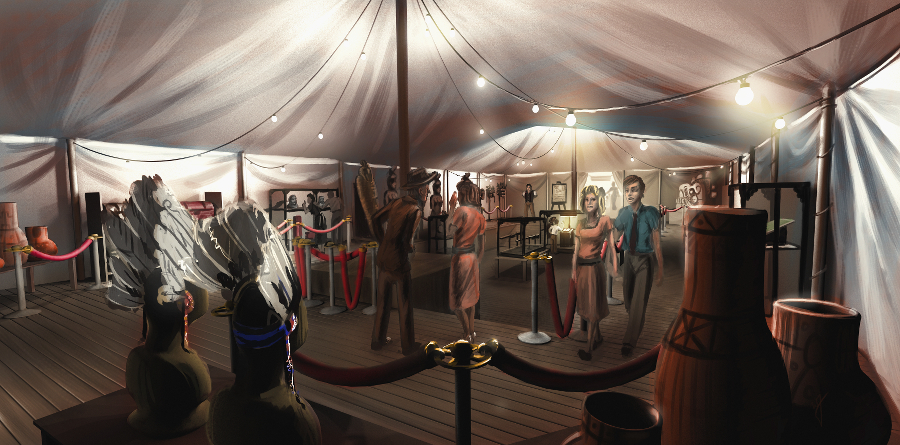
    The first piece was strictly an environment piece, based on a possible traveling exhibit around the 1940’s. This pieces primary purpose was to show potential investors that some effort and thought was being put into the production, to show that there was talent to help create the world of the story. So I tried to focus on the details of the objects in the tent, rather than characters, to see if I could just tell a basic story with the objects in the scene. This piece could be used for actual set design during production, but most likely not.

    Thieves cross_concept_web

    [/column]
    [column]

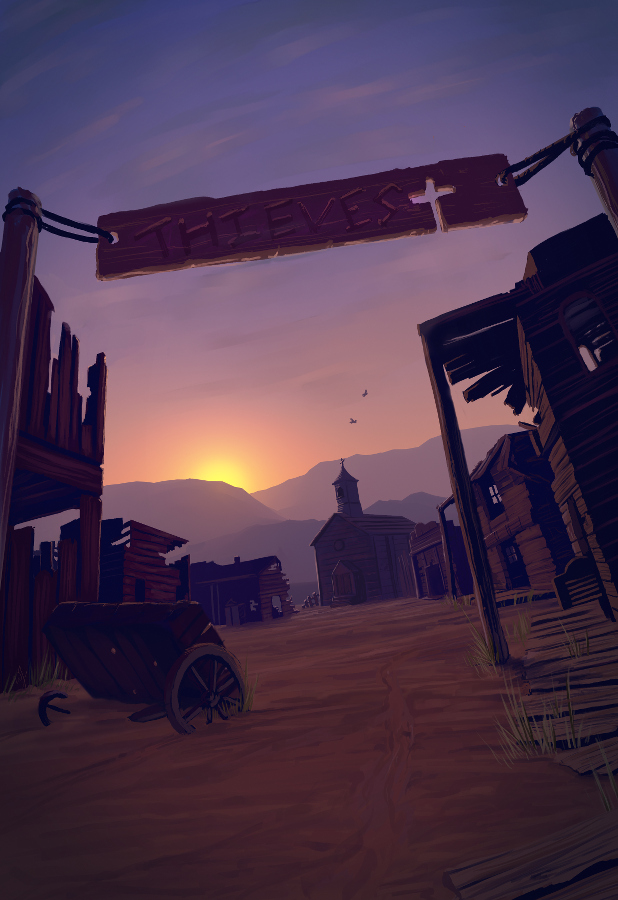
    The next painting was done for an area in the script called “Thieves Cross”. And old ghost town in the story where the main characters end up in, searching for clues. The town was originally a settlement for criminals, so, it didn’t have much in the way of development, except for the old chapel. I wanted to make the chapel the center of the image, so I set up my composition to perform this task. I used a dutch angle to add a bit of uneasiness to the scene. Like the painting before, I started with a 3D base done in Blender, and then moved into Krita for the final paint over. I have to say, working in 3D to begin with helps immensely with perspective and laying out the basic composition. It easily shave 1 or 2 hours off of each painting.

    [/column]
    [/column-group]

    [column-group]
    [column span=”2″]

    Art and the Specter_web

    [/column]
    [column]

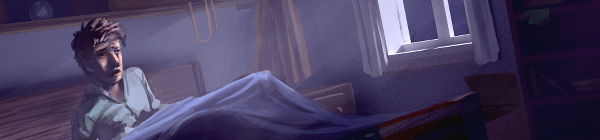
    The last painting was almost an illustration. Again, whether or not Art’s room will look anything like the painting in the final film is one thing, so, instead I focused on the mood and lighting of the moment given to me from the script. I feel that I got the composition right on in this painting. Every part of this painting just fell into place. For me, the color, lighting, composition, characters, mood. etc… just works! I love it!

    [/column]
    [/column-group]

    This was an awesome opportunity for me. I am grateful that I had the opportunity to work on some pre-production art work. I love to see written stories come to life visually, and to have some control over how that happens is incredibly gratifying. This work has spurred Thor Media to leverage mine and Michael Buhler’s skills in producing art. We are currently putting together service packages in the areas of Storyboards and Concept art. They got me working on the Thor Media website and a booklet that we can pass out to potential clients. This is something that I have wanted to do for a while, and I hope it turns out well.

  • Quick Tip | Drawing a Character in Profile | Video Tutorial

    Quick Tip | Drawing a Character in Profile | Video Tutorial


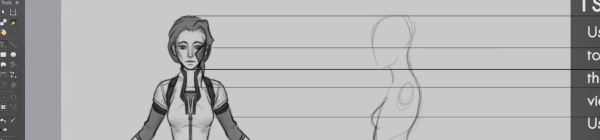
    Here is something that I put together a few weeks ago, and just got around to finishing it. This small tutorial covers a couple different methods of creating an accurate representation of a character’s profile, based on a previously draw front view of that character. Enjoy.

  • Krita Time Lapse Painting | The Waker

    Krita Time Lapse Painting | The Waker

    I have been trying to get this painting posted for over a week. Ran into issues with my computer and work has become really busy. But, the excuses can be annoying, so, here it is.

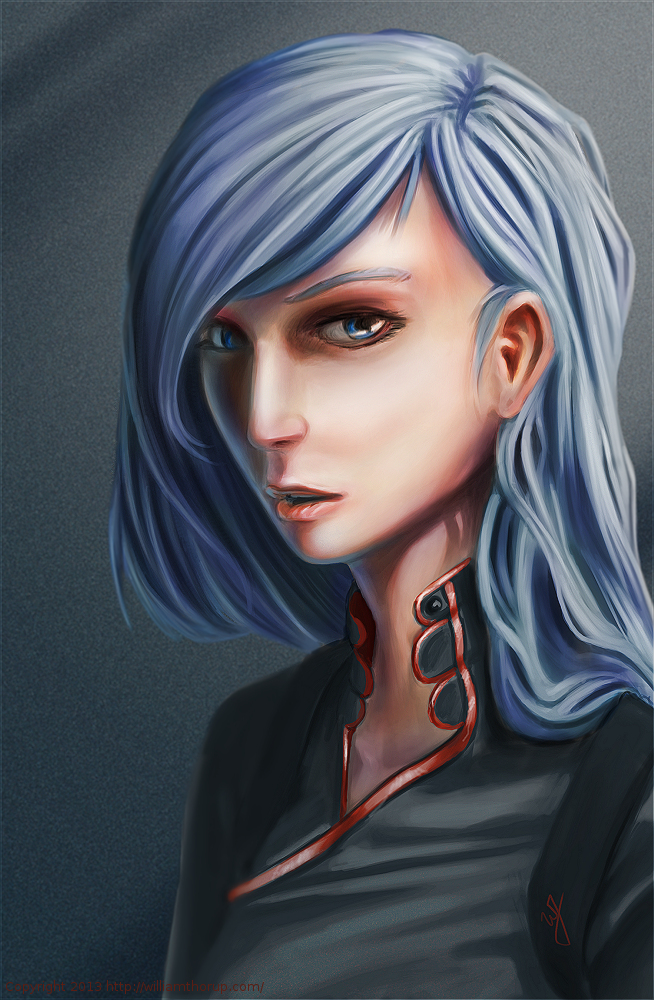
    This painting was very much spontaneous. During a digital sketching session, this face came out, and I decided to push it to a finished rendering.


    the waker_web


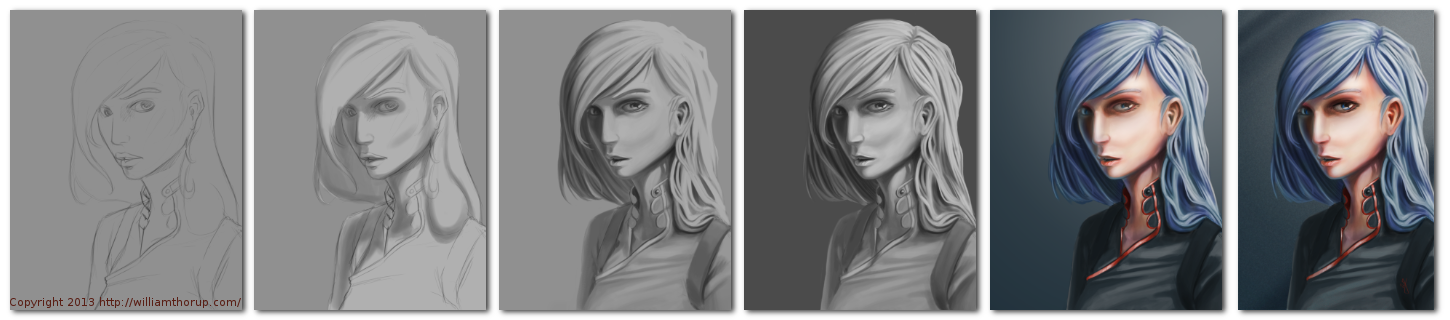
    This painting got me a bit worried, since it had been a while since I tried to tackle realistic lighting. Rendering correct lighting has always been a bit intimidating for me, but I seem to have handled it well. I first broke down the steps. So, instead of trying to take on both color and light at the same time, I decided to do a grey scale painting first. Simplifying the process overall, and allowing myself to focus specifically on how light is interacting with the form.

    Digital art really makes coloring an image easy. I pick a color, slap it on a with a different layer in “Overlay” blending mode, and if I ever need to change it, no problem. Just use a Hue/Saturation/Value filter to adjust the color. As you can see in the video (3:40 and 3:52), I did this for her hair and her clothing.


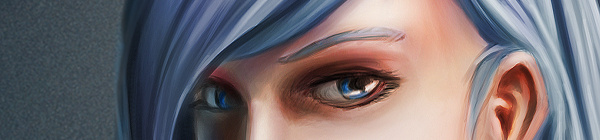
    I love painting skin. The key to making skin look alive, are the areas where light transitions into shadow. Because skin isn’t completely opaque, light will enter the upper layers of the skin, hitting blood underneath, and will bounce back oranges and reds. The is particularly prevalent in the transitional areas between light and dark.

    A good example of this in this painting, is her chin, starting at 4:17 in the video. A few other things to keep in mind when painting skin is to play with other colors on top of the skin with a layer set to an “Overlay” blending mode. Colors like green and yellow can add healthy variety to lighter areas of the skin, while violets and blues can saturate your shadows making them appear more realistic. At 3:39 in the video, you can see I added a light layer of blue to under the jaw line.

    One thing that was unexpected in this painting was her hair. The hair that falls down her neck turned out to be much more complicated than I originally planned at the sketching phase. I had fun spending the time rendering it, and I feel it adds a certain level of detail that the painting wouldn’t have otherwise.


    the Waker_Six step process


    I feel a bit silly mentioning this, but her ear is something that I am proud of. I didn’t spend as much time rendering it than I did other portions of the painting. The structure is very much convincing, but still has the brush strokes that I like to see in my work. One other thing I enjoy about this painting are the facial proportions. I am still far from being a master when it comes to proportions, and that can be clearly seen in my work. But the scale of her mouth compared to her eyes and nose are pleasant, and seem to go well with the piece as a whole.

    These paintings that I do without reference always surprise me ounce they are done. I find it fascinating to think pack on my processes and ask myself why I did something a certain way. It helps me to see what I do well, and what I still need work on.

  • Krita | Character Concept | Void

    Krita | Character Concept | Void

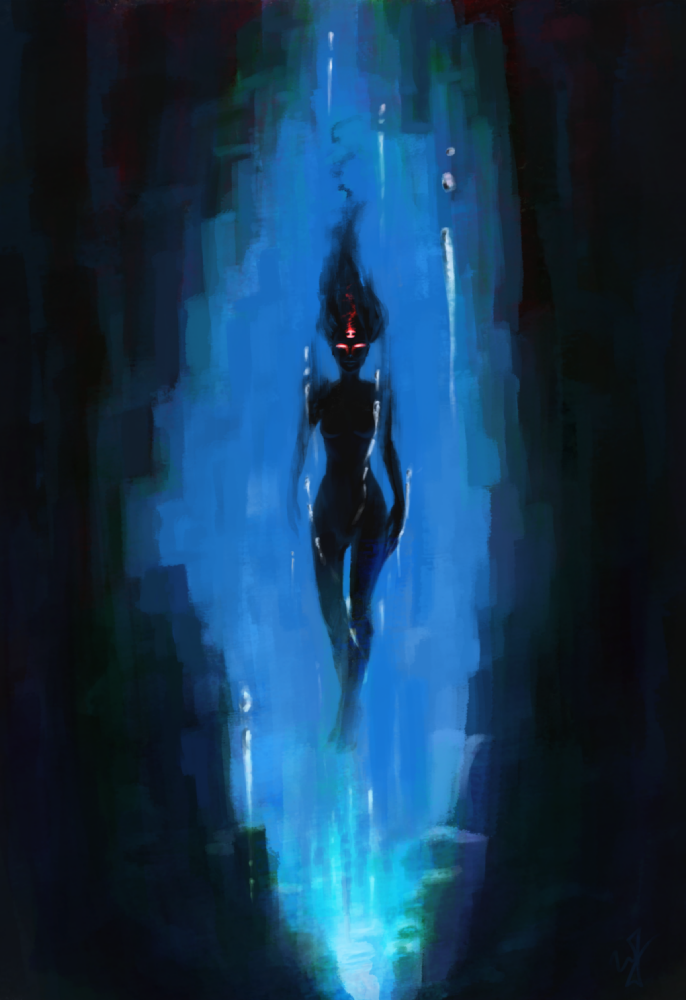
    Void_web

    Sorry about no weekly sketch reviews. I have been doing allot of sketching, just haven’t taken the time to put some posts together. Maybe Friday or Saturday perhaps.

    Been busy with things, looking to get Josh the Whale released, other video production projects, etc. In my free time though, I have been doing written and visual concept for mine and Bryce’s Jag game. The visual stuff is easy, it’s the writing part that is kicking me in the butt.

    I would never confess to having any real skill in writing. I am hoping that these side projects, along with company projects, will give me the practice I need to change that.

    So to give you a bit of an introduction to this piece, without diving into undeveloped ideas. This character is one of 6 gods that govern the world and it’s time. She is the very essence of the absence of time. The opposite of existence.


    That is the idea that drove this painting, and that is all that I have so far. Maybe I will post more about these characters in future paintings. Yet again, maybe not. This is just a side project, so we will see how far it goes.

  • Krita & Gimp Illustration | Zelda

    Krita & Gimp Illustration | Zelda

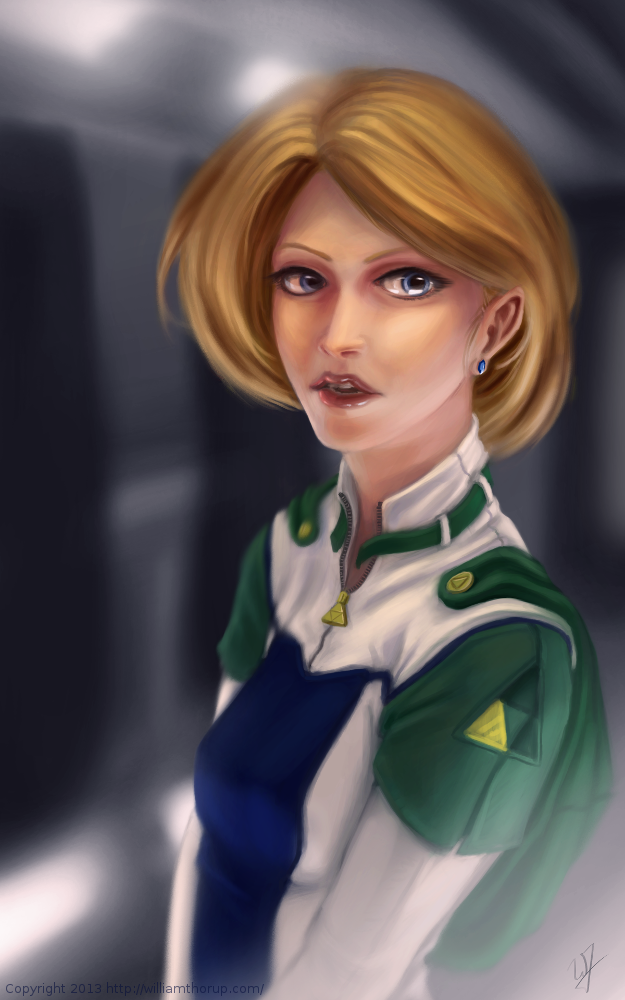
    zelda final_web

    I don’t do allot of fan art, in fact, this piece originally didn’t start out as fan art. I was watching an episode of from the first season of Robotech, and sketching at the same time on my Lenovo tablet, when I did the initial sketch. (The costume is somewhat Robotech inspired). The one you see at the beginning of the time lapse video. It wasn’t until after I started refining the sketch in Krita, did I decide to turn it into fan art.

    Don’t get me wrong, I think fan art is awesome, and an awesome way to express you appreciation for something (Isn’t that what art is kind of about?). And I wish I would take more time to do some fan art. But I tend to avoid it, because I have the feeling that I won’t be able to do it justice. So, I put off most of the fan art I would like to do for a later day and time.

    This time around, though, I feel I did a fairly good job, and feel comfortable in posting and receive feedback for this piece of fan art.

    But enough of that, lets go over some stuff that I think is worth talking about, and might be a bit educational. I am just going to start at the beginning of the video and mention a few interesting things I noticed in my process.


    First, a bit of an explanation on content and style. This is a re-imagining of the character Princess Zelda, from the Legend of Zelda video game series. When I decided that this was going to be a fan art piece, I wanted to stick to the poofy hair and a somewhat military uniform as seen with many of the characters in the first season of Robotech, but with a bit of Zelda seasoning. There are actually only a handful of things that tie this piece into the Zelda universe.

    The most obvious things are probably the colors. The blue rupee, green hood and shoulders, and the golden triforce all point to the Legend of Zelda. But there is also the character herself. Zelda is often portrayed as someone beautiful, with a sense of innocence, which is something I stuck to here. But the costume was chosen to depict the strong side of her character as well. A less obvious sign of her character is that her mouth is open, as if she were speaking to you. Zelda is often used in the Zelda series as a mentor character, and if she lived in a more futuristic or sci-fi world, I see her playing more of the mentor character than royalty.

    There are a few other things I could mention, content wise, but for the sake of keeping things short, I will let you jump on the Zelda Wiki to figure some of the other imagery out.


    zelda_palette_1.png

    As for my processes. Most of my planning was done in the line art. At this point I didn’t have a really good sense of the lighting, until I sat back and thought about it later, but I had a good idea of what I wanted the subject to look like.

    I decided to skip doing a value painting, and go straight into color and value. I try to avoid this nowadays, and stick to a value painting before I ever jump into color, but in this case, I wanted to try something new.

    I wanted to try to create a simple color palette to lay the foundation for my colors and values. I don’t include this step in the video, but it is something that I learned from a post by Nasan Hardcastle. A great digital artist, that I suggest that you all follow. But having a simple palette like this can help keep your colors and values organized in the foundation of the painting.

    Something unique in this painting, that I have never done before, is the light setup. If you include ambient light, I have a total of 4 different light sources in this painting. This was one of my stretch goals for this painting, to use that many light sources without loosing the form of the subject, and adding appeal to the painting overall.

    But not all was fine with this painting. I messed up on the proportion of the nose, and had to readjust that half way through. Not too difficult, but I feel it’s something that I shouldn’t have to deal with and definitely need to practice more on. Also, another proportion problem was the width of the head, which I eventually had to fix.


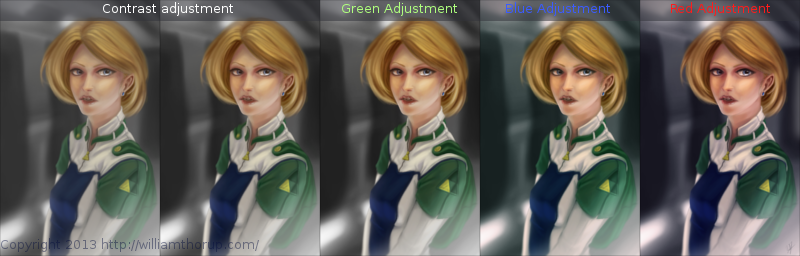
    But with the good and bad of this painting aside, there is one tip I would like to share. Color Grading. One of the huge advantages to digital art.

    Zelda_Color correction

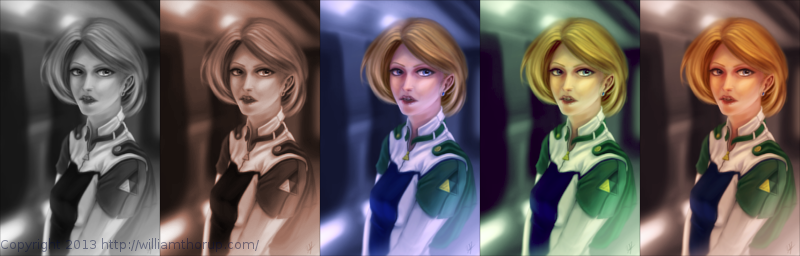
    I have never been good with color, this is probably because I don’t have a solid base in traditional painting. But, “color curves” an “levels” make up with this shortcoming with ease. Using some reference images that I wanted to match color with, I did several stages of color correction, as depicted above, using both “color curves” and “levels“, and selection the specific color channel I wanted to modify.

    Zelda_Color moods

    These two options can also be used to quickly change the feel of a painting. A good way to explain this is how a sepia toned image and a black and white image create very different feelings, even though content may be the same. This is pretty basic stuff, especially if your into photography, but it is fun to take an image you created from scratch and see how it transfers to these different color schemes.


    I have a few more paintings coming down the line, we should be starting a new app project soon, and a Weekly Sketch Review is just around the corner. Stay tuned.

  • Illustration | On the Rail

    Illustration | On the Rail

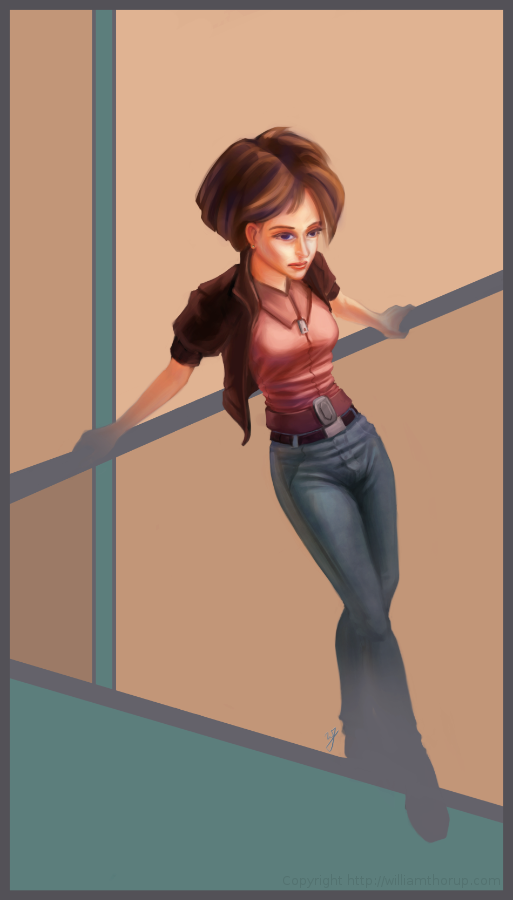
    on the rail_

    The last few weeks I have been trying to reach outside of my box a little.  Been reading allot about visual style, and developing a visual style as an artist.

    The 16-bit portrait I did earlier, and this piece have been practice in what I am reading.  and it has been fun so far.


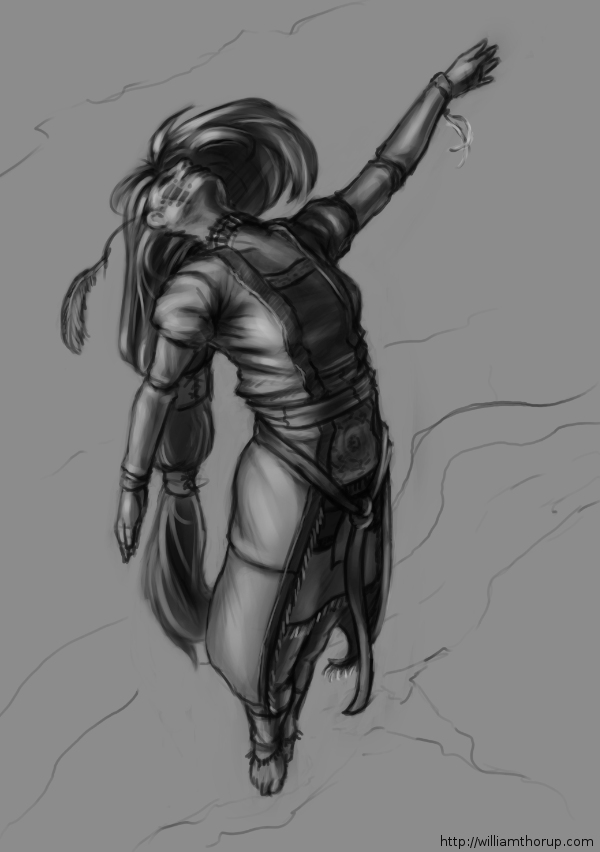
    I was just sketching when this one came out to me.  I liked the pose, and the silhouette that it makes was really strong. I decided to carry it to a finished piece.   The outfit she is wearing is really random, and for me, kind of weird. Feels a bit western. But, in the end, I think it feels good with the rest of the image, and it definitely helps the silhouette as well.  I stuck with a split-complementary color scheme to keep things simple. and wanted to focus on basic skin tones to present a warm feeling in the painting overall.

    As for what I struggled with in this painting.  The background was killing me.  At first I was leaning towards a style that fit the character.  Something that fits the perspective and shaded similar the woman.  Going over this in my head, I couldn’t really think of an environment that would work with the subject to create a stronger piece.  So, in the end, I decided to do something abstract, and focus on composition and color.  Something that would strengthen the main subject, but at the same time wouldn’t be distracting.


    Again, overall, it was and interesting piece to work on. Definitely not in my usually ball field, but it was good to stretch a little. Its also good to feel like shading is becoming second nature. I am doing better with drawing hands, but still have a long way to go. I struggled with the face a bit, so we’ll seem more faces in my Weekly Sketch Reviews for sure. Speaking of, one of those should pop up soon.

  • Blender VFX | “Spaceman” Shortfilm

    Blender VFX | “Spaceman” Shortfilm

    This has been a long one in the making. I guess I shouldn’t put it that way, though. It took only a week or so to actually finish the work. I have just been waiting for the release of the actual short film, to get permission to post about it.

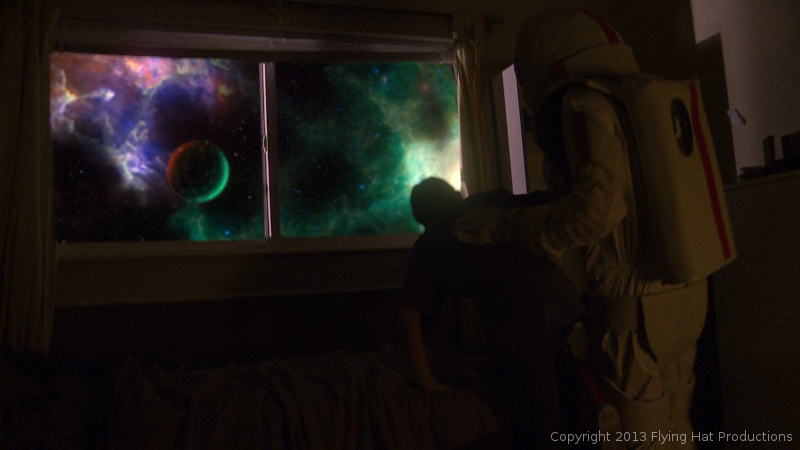
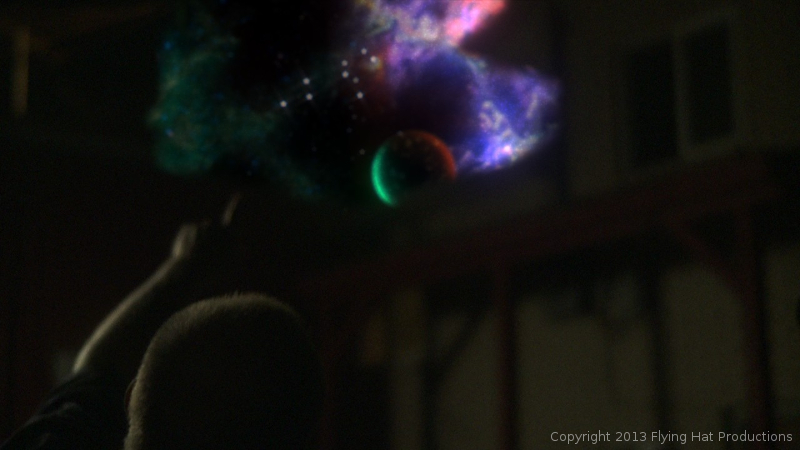
    Over the last year and a half, I have had allot of opportunity to work with the Blender compositor, and it has given me the chance to learn, in detail some of the things needed, to pull off some simple effects. One of these projects was “Spaceman“. A short film by producer Holly Tuckett and writer/director Jaron Kent Hermansen. Their short film required some visual effects work, and they asked Thor Media to step in and do the job. Here is a short breakdown video of a few of the shots that I worked with.


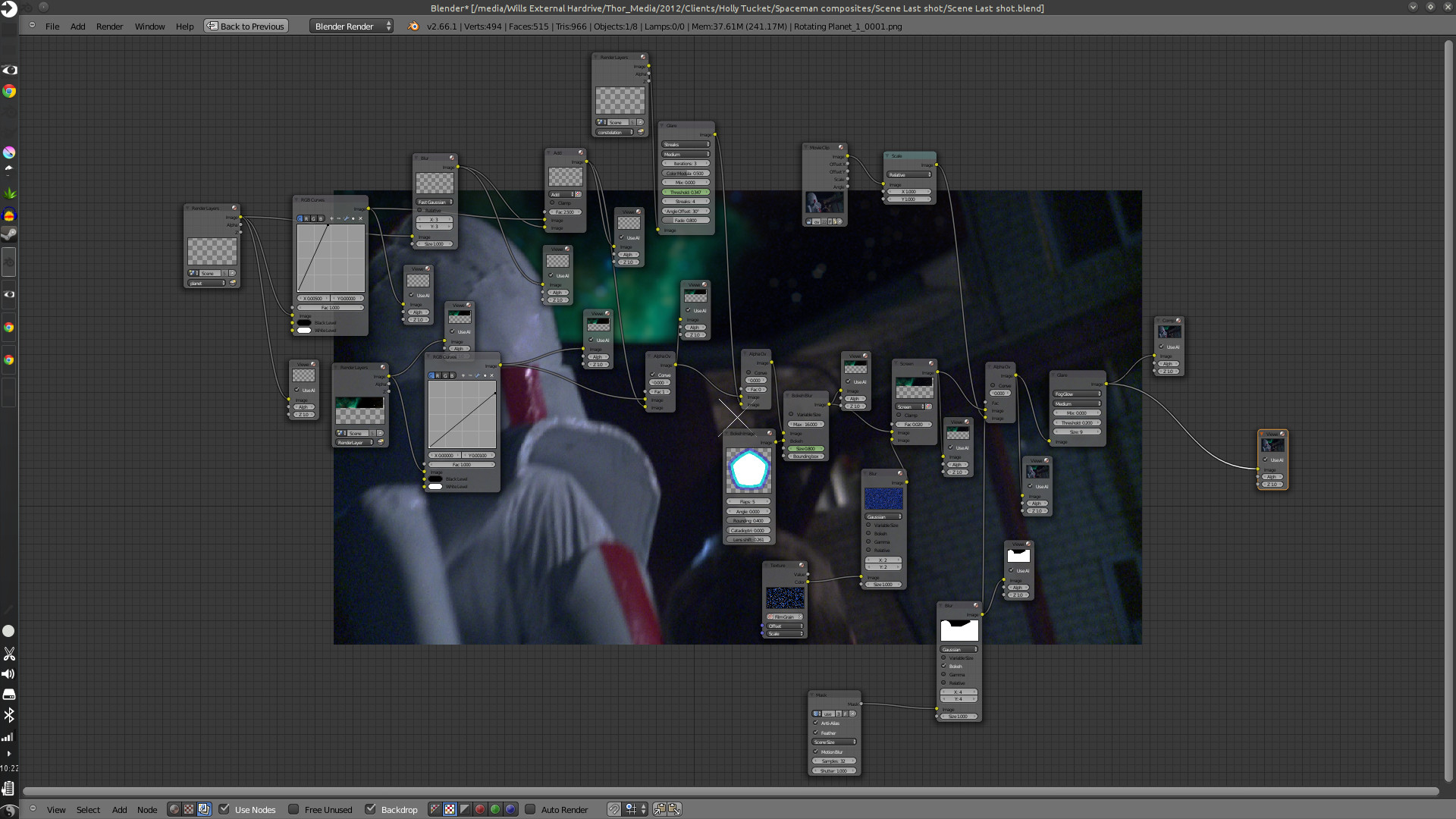
    spacemand composite nodes_1

    Here are some of the compositing trees. It looks allot more complicated than it actually is. And to put in new backgrounds only takes a few steps.

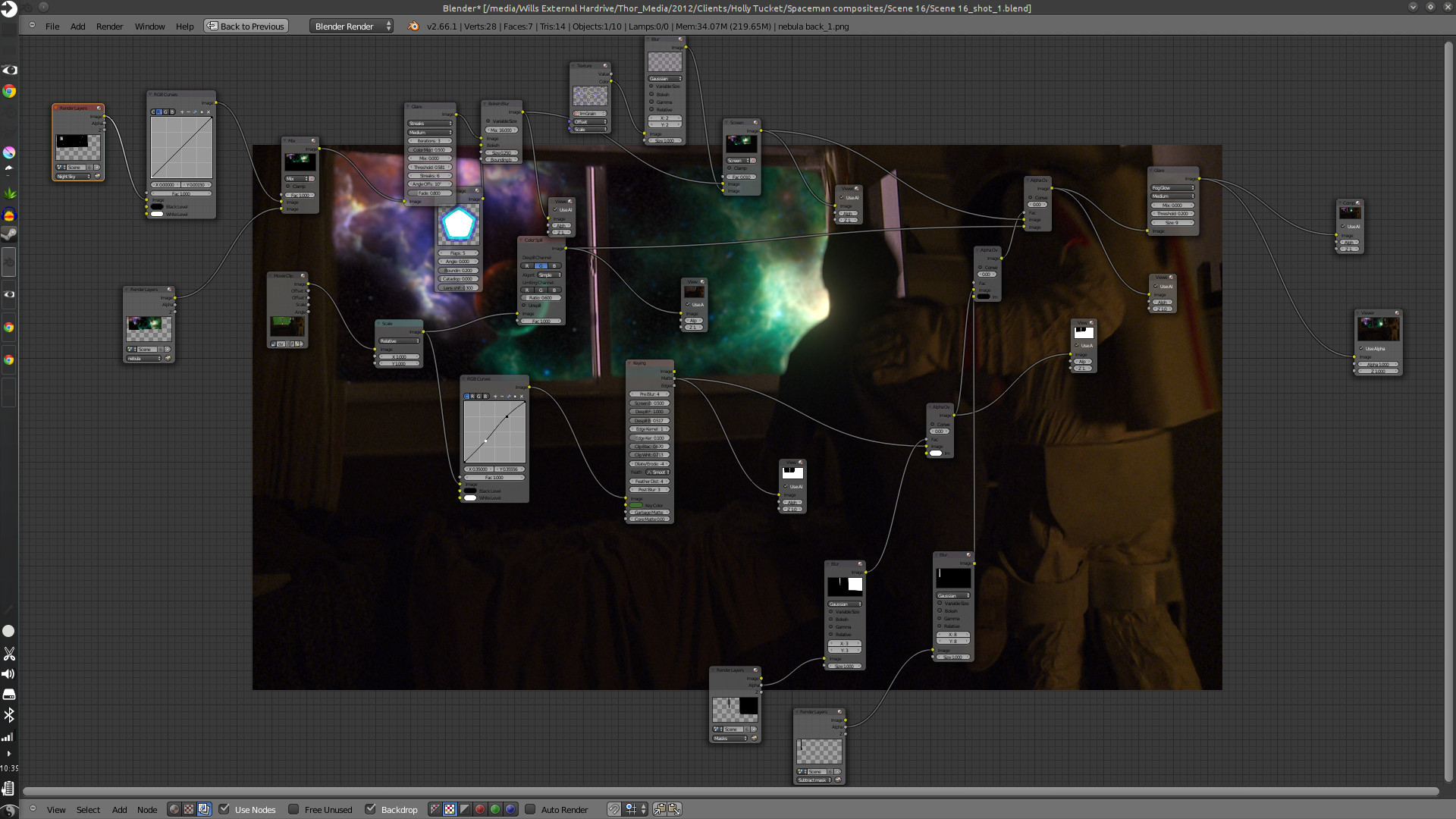
    First thing is to track the footage, whether the camera is moving or not. The camera is always moving, whether its the wind blowing, or the heartbeat of the camera man, the image will always move. Next is keying the green screen, and creating any masks that are needed to maintain what you want out of the original footage. And attaching those masks to the camera tracking data.

    spacemand composite nodes_2

    After which you build your background and attach it to your camera tracking data, and adjust to make the movement look good. Then comes any color correction, adding other effects like glows or motion blur, adding film grain, and then the final composite.

    The hard part is getting the new, digitally created elements to look good with the real stuff, speaking of style and lighting. This takes allot of patience, critique from other people, and just playing around with the options that are at your disposal.

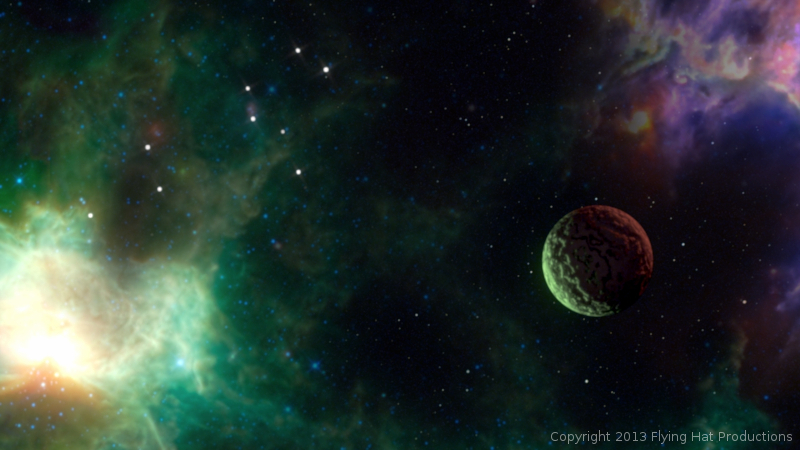
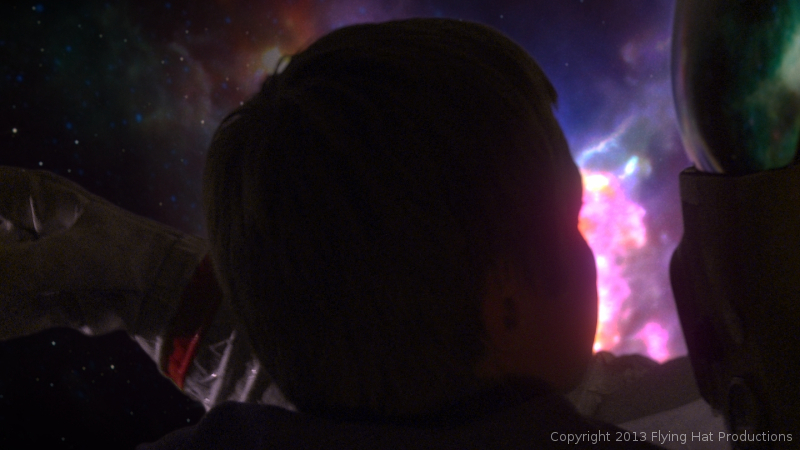
    This was especially hard with this project, because most of the visual effects take place in the boy’s dream, and are meant to be exaggerated a bit. But at the same time, I had to get a look that fit with the mood and style of the story, without making it feel like the visual effects were making light of the situation.


    spaceman_blog_image_1spaceman_blog_image_2spaceman_blog_image_3spaceman_blog_image_4

    Overall it was a very fun project to work on. Jaron and Holly at Flying Hat Productions, are great people to work with, and gave me good feedback and direction on the project. And, also, my brothers Jacob and Bryce gave great feedback and critique. I hope there are similar job like this in the future for Thor Media. Free, fun and creative.

    The short film hasn’t had an official release yet, but they have trailers and all sorts of content on the film’s blog. Click on this link, http://spacemanthemovie.blogspot.com/, to learn more about the short film and it’s creators. They did a great job putting it together, and would love to see your support.

  • Draw Night | Value Painting Tips

    Draw Night | Value Painting Tips

    ascension_Value Sketch_web

    We had a good draw night yesterday evening. Good to see friends and draw a few things as well.

    During the few hours I was there, I worked on a sketch that I had started the day before, that I enjoyed, and I thought I would push it into a value painting. And, as I was recording my desktop, I thought that it would be good to not only have the time lapse, but also include a few tips and things that go through my mind while I paint. For my benefit and for yours.

    The video is fairly short and to the point, and I hope it helps. And if it doesn’t help, I also recorded myself through the webcam. So, at least you can laugh at me, as I get ridiculously close the screen and perform all sorts of weird expressions.

    If you are interested in joining us for draw night and live in the greater Salt Lake City Utah area, drop by our Facebook page and let us know. The location sometimes changes, so keeping tabs on the Facebook page will keep you up to date on the location.


  • Krita 2.6 Illustration | In the Park

    Krita 2.6 Illustration | In the Park

    Jumped back on to the Krita bandwagon the other day, and it was good. It’s fun to be in a new program and learn new keyboard shortcuts and tools. And I love the rotate canvas feature, I sure hope Gimp eventually gets that feature because it invaluable when editing, not just drawing or painting.

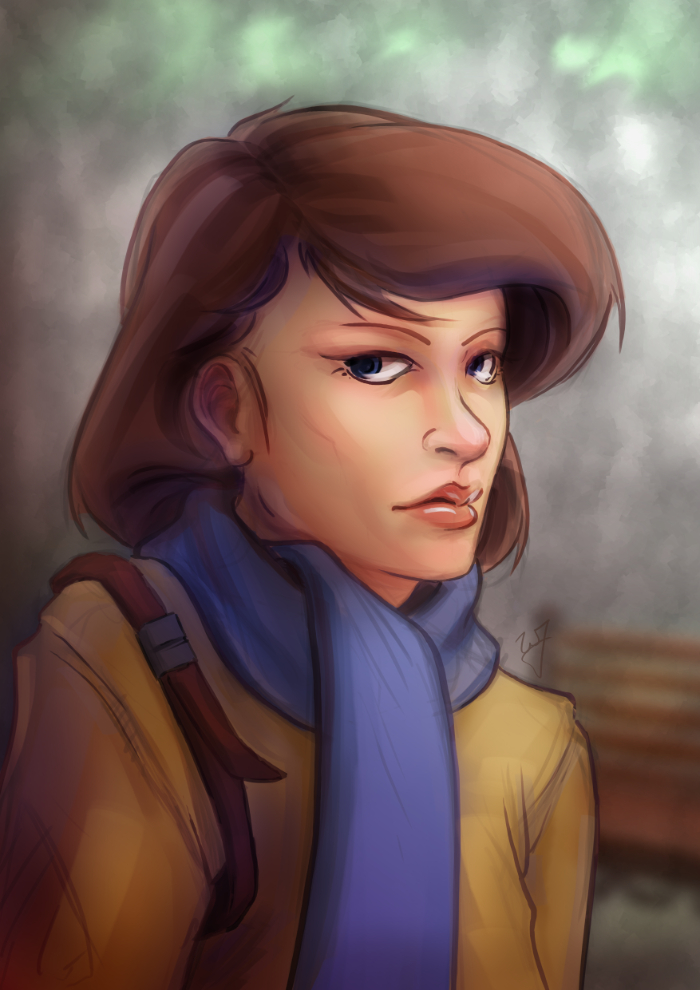
    In the Park


    This piece was really enjoyable. There were some points of doubt and uncertainty, especially when I started coloring, but overall I like the final result. I wanted to do something a bit more cartoon oriented, but keeping my focus on color and composition.

    One thing in particular I kept in the forefront of my mind was the rule of thirds. Not in with the painting as a whole, but with the subject instead. Focusing on the silhouette of the character, you will see that the left and right sides of the subject have 3 major hills or bumps. This, along with the backwards “S” curve in the hair, was used to create symmetry at the focal point (the face) and a softer look towards the face.

    Look at this in contrast with the subjects jacket. Her shoulders, and other lines on the jacket, are sharper. Which makes most viewers follow the blue scarf (a softer shape) up to the face.


    As a side note. If you haven’t had the time to check out my latest tutorial, Using Gradients, I highly suggest it. Good reading. I use this painting in most of the examples, and show how I added depth, color diversity, and a focal point, by using two simple gradients.

  • Tutorial | Using Gradients

    Tutorial | Using Gradients

    In the Park

    I have been using allot of gradients in my work lately. Because of this, I thought it might be good to put together a tutorial of how I have used them so far.

    As for what I want to come across to the reader, I want you to learn how to use gradients to create a focal point in your image, diversify and images color, and create a sense of depth.

    Also, in order to help bring my points across, I have included a project file that can downloaded by clicking on the buttons below. I will be referring to this file throughout the tutorial.

    Download
    XCF_Download_ButtonPSD_Download_Button
    [expand title=”Download Notes”]

    Note: The Photoshop file should work to the best of my knowledge. The only thing that might not work are specific layer’s blending modes. Here is a list of the layers and the blending modes they should be on:

      • “Gradient Painted” –> Multiply
      • “Gradient Tool” –> Overlay
      • “Subject” –> Normal
      • “Background” –> Normal

    Another option is to download a copy of Gimp, HERE. IF you are using Windows or a Mac, about halfway down is a link that says “Show other Downloads”, click this and you will find versions for those platforms. It’s free, and small, and you will be able to open up the project file without a problem.


    [/expand]

    A bit of disclaimer. I consider myself in the professional work field, but I am not a master at the craft. This tutorial is to share knowledge and a few tips to other artists who may not know what I am about to teach.

    Also, if you don’t know how to use the gradient tool, or blending modes for layers, in your given program, go ahead and do a Google search about these two things. Having a basic knowledge of these two tools is essential for this tutorial.


    I feel Like I’m Cheating

    When I first started doing digital artwork, for some reason I had it in my head that using gradients was kind of shortcut, and it was something that professional artists tend to avoid. Gradients, along with some other tools (dodge and burn tools) almost seemed taboo, and were used by beginners to add shading in a cheap and quick way. I can’t remember were I got these ideas, but I couldn’t have been more wrong.

    The years rolled by, since I started in digital art, and I began watching tutorials, seeing time lapse videos of paintings, and talking with other digital artists. And I began to realize that these tools were not a way to cheat, but instead to speed things up. These artists are professionals, on a deadline, and in order to get a large body of work done quickly and effectively, they would need these tools to speed up their work. This is one of the advantages of digital art, within a production environment.

    I learned that these tools, if used properly, can be used to enhance and speed up your overall workflow, without having to sacrifice quality.


    Adding Depth

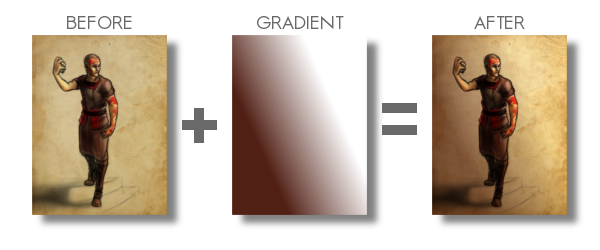
    Here is a recent example of a gradient used to create depth in my work. You can see the original post for this piece HERE, along with a time lapse video.
    example_1

    By creating a gradient, that matches the angle of my light source, I turned this somewhat “flat” looking piece, into something that gives you a sense of depth. Yes, I could have taken the time to go and paint that subtle change from light to dark manually on my character, and then the background. But, because this is a concept piece, the less time spent on it the better. I turned a potential 3 hour long piece, down to 1 and half hours. More time to do other work, with out sacrificing quality, is good in my book.

    Also, you might have noticed, the gradient doesn’t go from a black to a white. There are cases when you will use just a black to white gradient, but I found by adding color to the black or white can introduce new colors to the piece.
    Ted_concept_1_webcooper_websarah_web

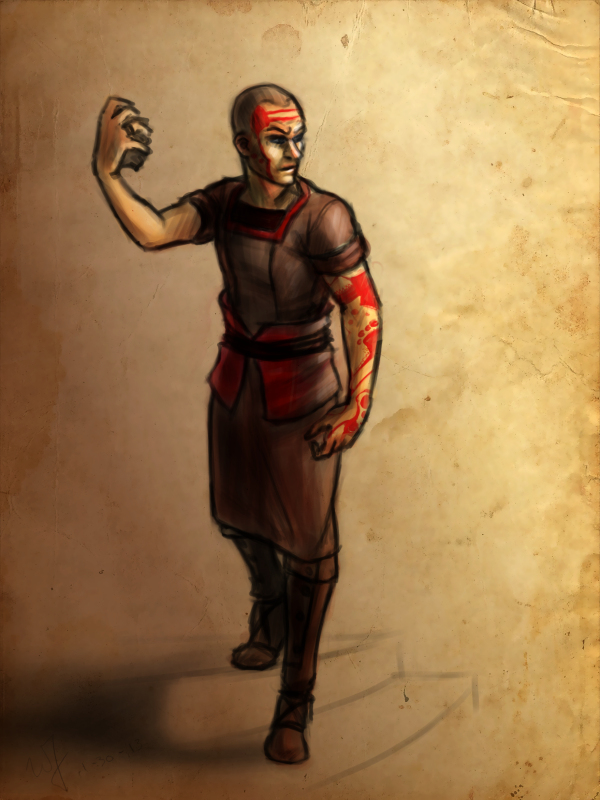
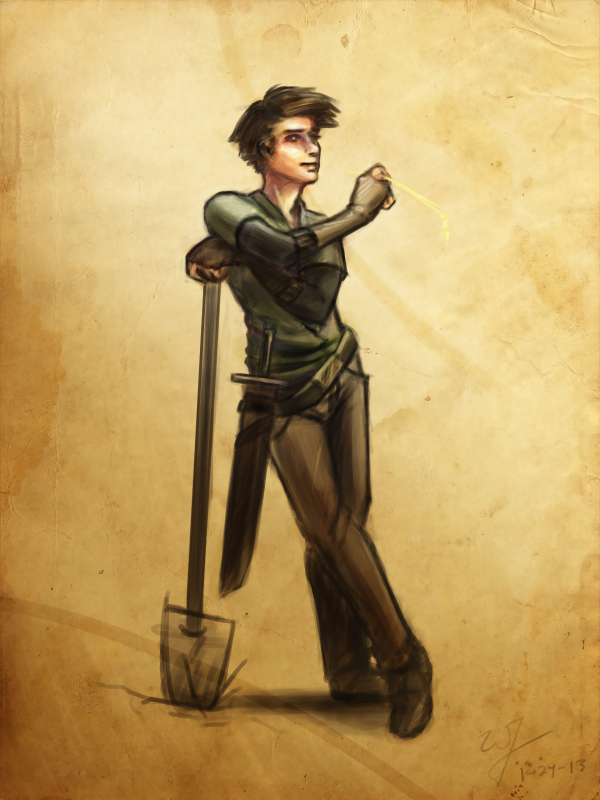
    By the way, I used this same technique in all three of these paintings. But notice how I used a different color for the gradient to match the colors of costume for the character on the left. Also, notice how subtle the change is. Often you don’t need to have your overlayed gradient at full opacity. I usually end up dropping the opacity of my gradient layer down to around %50.

    Try this out. In the project file make sure you have the “Gradient Tool” layer selected, and try adjusting the brightness and contrast. See how this changes the sense of depth in the image.


    Color Diversity

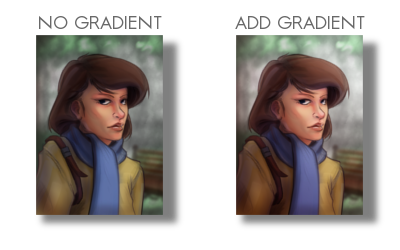
    Adding color to the gradient, while using the “Overlay” blend mode, can add additional colors to your painting. If you examine the project file you downloaded, I did this in that painting. Go ahead and turn the “Gradient Tool”  layer off. A huge change will occur. Not only do we lose the depth, and the focal point in the painting, but the colors don’t seem to work as well.
    example_2

    I am using a tertiary color scheme with this piece. Brown, yellow, and blue, to put it simply. So by changing the black of my gradient to a brown, similar to the subjects hair, I am able to introduce those brown colors to other parts of the painting.

    Especial her right shoulder. Originally, it’s a flat yellow color, nothing that interesting to look at. But, by adding that brown gradient and using the blend mode “Overlay“, it adds body and life to those yellows on the jacket, and ties it to the focal point.

    Try this little experiment in the project file. Select the “Gradient Tool” layer, adjust the hue, along with the saturation, and the brightness and contrast. See how this changes the mood, and overall liveliness of the image.

    In the Park_focal point gif

    Creating a Focal Point

    If you are doing any type of illustration, or a piece with a central idea or subject, focal points are important. And this is where gradients can be very helpful to create a focal point very early in the painting.

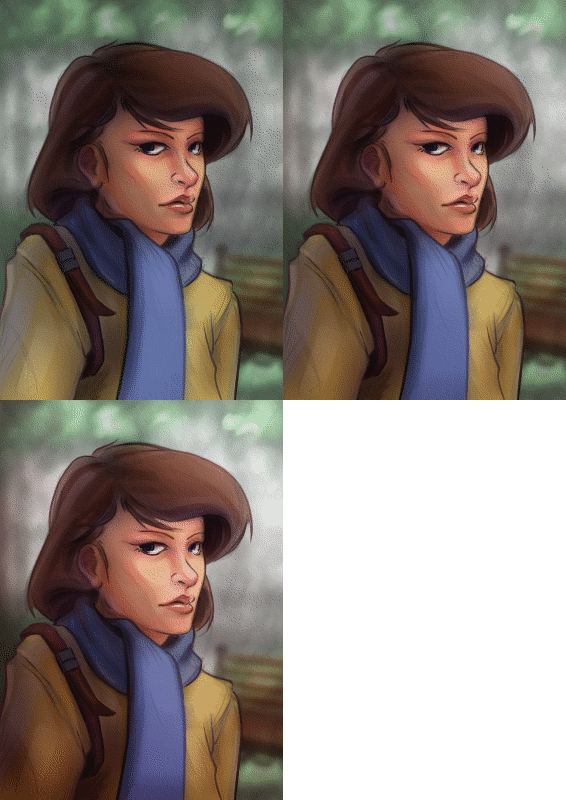
    As you can see in the project file, the focal point is the face and the right edge next to it. There are several theories of composition I followed to achieve this, but the most important and the easiest to include at any point during a painting, is the change of values from light to dark, or contrast.

    If you turn off the two top most layers, “Gradient Painted” and “Gradient Tool”. The change from light to dark, or the value contrast, has become flat. Very uninteresting, largely because there isn’t a focal point. But, if you turn those two layers back on, you eye is immediately drawn to the face of the subject.


    Final Notes

    Few things I would like to mention. In the project file, the top layer “Gradient Painted”, isn’t a gradient made with the gradient tool. I just used a large soft brush to add some contrast to the left side of the painting. Sometimes, using the gradient tool will seem too consistent or perfect for your painting. So, depending on what style your going for, painting a large gradient by hand will give you a better effect.

    Also, experiment with blending modes and gradients. Experiment with taking away and adding contrast using this technique. You might stumble on a look or feel that you like, but weren’t expecting.

    With that being said, I hope you enjoyed this tutorial, and I hope it helped in some way. Any questions or comments are welcome.

    I have a timelapse of the painting used in this tutorial HERE. Also, here is a list of time lapse videos and paintings of this technique in action. Sometimes it is better to see a technique in action than trying to talk about it.