William Thorup

Illustrator, Motion Graphics Designer, Animator, and VFX Artist

Tag: video

  • Tutorial | Using Gradients

    Tutorial | Using Gradients

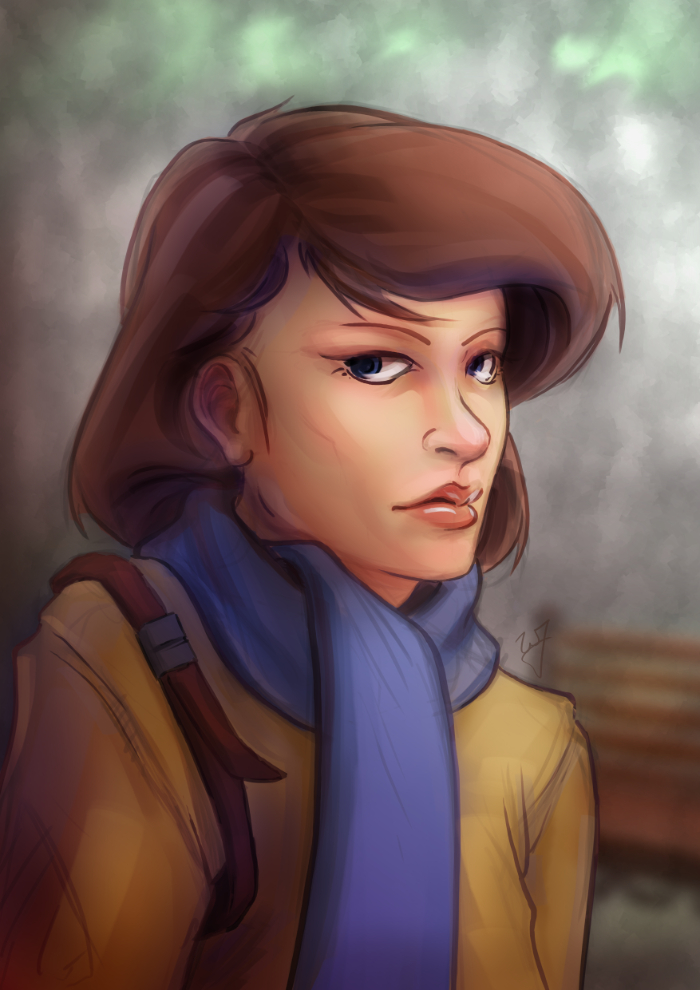
    In the Park

    I have been using allot of gradients in my work lately. Because of this, I thought it might be good to put together a tutorial of how I have used them so far.

    As for what I want to come across to the reader, I want you to learn how to use gradients to create a focal point in your image, diversify and images color, and create a sense of depth.

    Also, in order to help bring my points across, I have included a project file that can downloaded by clicking on the buttons below. I will be referring to this file throughout the tutorial.

    Download
    XCF_Download_ButtonPSD_Download_Button
    [expand title=”Download Notes”]

    Note: The Photoshop file should work to the best of my knowledge. The only thing that might not work are specific layer’s blending modes. Here is a list of the layers and the blending modes they should be on:

      • “Gradient Painted” –> Multiply
      • “Gradient Tool” –> Overlay
      • “Subject” –> Normal
      • “Background” –> Normal

    Another option is to download a copy of Gimp, HERE. IF you are using Windows or a Mac, about halfway down is a link that says “Show other Downloads”, click this and you will find versions for those platforms. It’s free, and small, and you will be able to open up the project file without a problem.


    [/expand]

    A bit of disclaimer. I consider myself in the professional work field, but I am not a master at the craft. This tutorial is to share knowledge and a few tips to other artists who may not know what I am about to teach.

    Also, if you don’t know how to use the gradient tool, or blending modes for layers, in your given program, go ahead and do a Google search about these two things. Having a basic knowledge of these two tools is essential for this tutorial.


    I feel Like I’m Cheating

    When I first started doing digital artwork, for some reason I had it in my head that using gradients was kind of shortcut, and it was something that professional artists tend to avoid. Gradients, along with some other tools (dodge and burn tools) almost seemed taboo, and were used by beginners to add shading in a cheap and quick way. I can’t remember were I got these ideas, but I couldn’t have been more wrong.

    The years rolled by, since I started in digital art, and I began watching tutorials, seeing time lapse videos of paintings, and talking with other digital artists. And I began to realize that these tools were not a way to cheat, but instead to speed things up. These artists are professionals, on a deadline, and in order to get a large body of work done quickly and effectively, they would need these tools to speed up their work. This is one of the advantages of digital art, within a production environment.

    I learned that these tools, if used properly, can be used to enhance and speed up your overall workflow, without having to sacrifice quality.


    Adding Depth

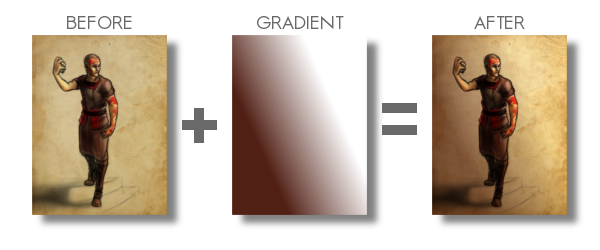
    Here is a recent example of a gradient used to create depth in my work. You can see the original post for this piece HERE, along with a time lapse video.
    example_1

    By creating a gradient, that matches the angle of my light source, I turned this somewhat “flat” looking piece, into something that gives you a sense of depth. Yes, I could have taken the time to go and paint that subtle change from light to dark manually on my character, and then the background. But, because this is a concept piece, the less time spent on it the better. I turned a potential 3 hour long piece, down to 1 and half hours. More time to do other work, with out sacrificing quality, is good in my book.

    Also, you might have noticed, the gradient doesn’t go from a black to a white. There are cases when you will use just a black to white gradient, but I found by adding color to the black or white can introduce new colors to the piece.
    Ted_concept_1_webcooper_websarah_web

    By the way, I used this same technique in all three of these paintings. But notice how I used a different color for the gradient to match the colors of costume for the character on the left. Also, notice how subtle the change is. Often you don’t need to have your overlayed gradient at full opacity. I usually end up dropping the opacity of my gradient layer down to around %50.

    Try this out. In the project file make sure you have the “Gradient Tool” layer selected, and try adjusting the brightness and contrast. See how this changes the sense of depth in the image.


    Color Diversity

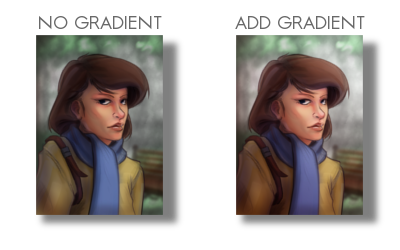
    Adding color to the gradient, while using the “Overlay” blend mode, can add additional colors to your painting. If you examine the project file you downloaded, I did this in that painting. Go ahead and turn the “Gradient Tool”  layer off. A huge change will occur. Not only do we lose the depth, and the focal point in the painting, but the colors don’t seem to work as well.
    example_2

    I am using a tertiary color scheme with this piece. Brown, yellow, and blue, to put it simply. So by changing the black of my gradient to a brown, similar to the subjects hair, I am able to introduce those brown colors to other parts of the painting.

    Especial her right shoulder. Originally, it’s a flat yellow color, nothing that interesting to look at. But, by adding that brown gradient and using the blend mode “Overlay“, it adds body and life to those yellows on the jacket, and ties it to the focal point.

    Try this little experiment in the project file. Select the “Gradient Tool” layer, adjust the hue, along with the saturation, and the brightness and contrast. See how this changes the mood, and overall liveliness of the image.

    In the Park_focal point gif

    Creating a Focal Point

    If you are doing any type of illustration, or a piece with a central idea or subject, focal points are important. And this is where gradients can be very helpful to create a focal point very early in the painting.

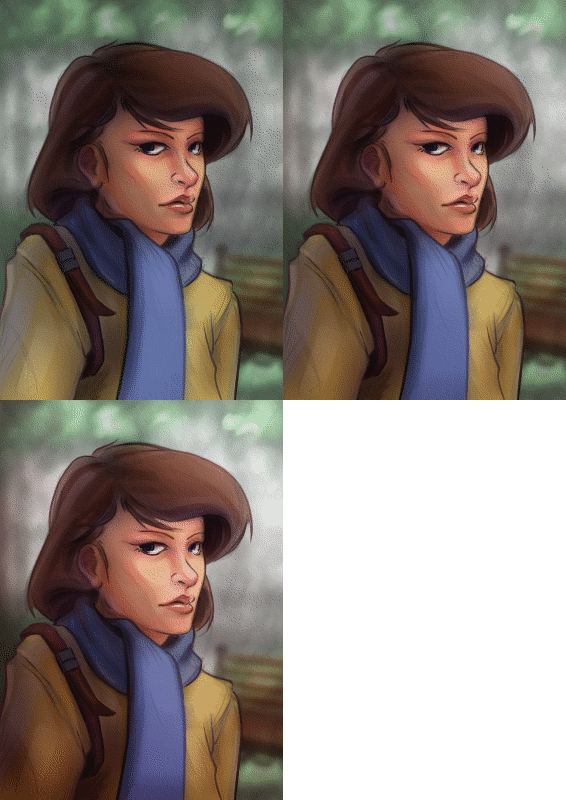
    As you can see in the project file, the focal point is the face and the right edge next to it. There are several theories of composition I followed to achieve this, but the most important and the easiest to include at any point during a painting, is the change of values from light to dark, or contrast.

    If you turn off the two top most layers, “Gradient Painted” and “Gradient Tool”. The change from light to dark, or the value contrast, has become flat. Very uninteresting, largely because there isn’t a focal point. But, if you turn those two layers back on, you eye is immediately drawn to the face of the subject.


    Final Notes

    Few things I would like to mention. In the project file, the top layer “Gradient Painted”, isn’t a gradient made with the gradient tool. I just used a large soft brush to add some contrast to the left side of the painting. Sometimes, using the gradient tool will seem too consistent or perfect for your painting. So, depending on what style your going for, painting a large gradient by hand will give you a better effect.

    Also, experiment with blending modes and gradients. Experiment with taking away and adding contrast using this technique. You might stumble on a look or feel that you like, but weren’t expecting.

    With that being said, I hope you enjoyed this tutorial, and I hope it helped in some way. Any questions or comments are welcome.

    I have a timelapse of the painting used in this tutorial HERE. Also, here is a list of time lapse videos and paintings of this technique in action. Sometimes it is better to see a technique in action than trying to talk about it.
  • Project Nebula | Desert Coast City Concept

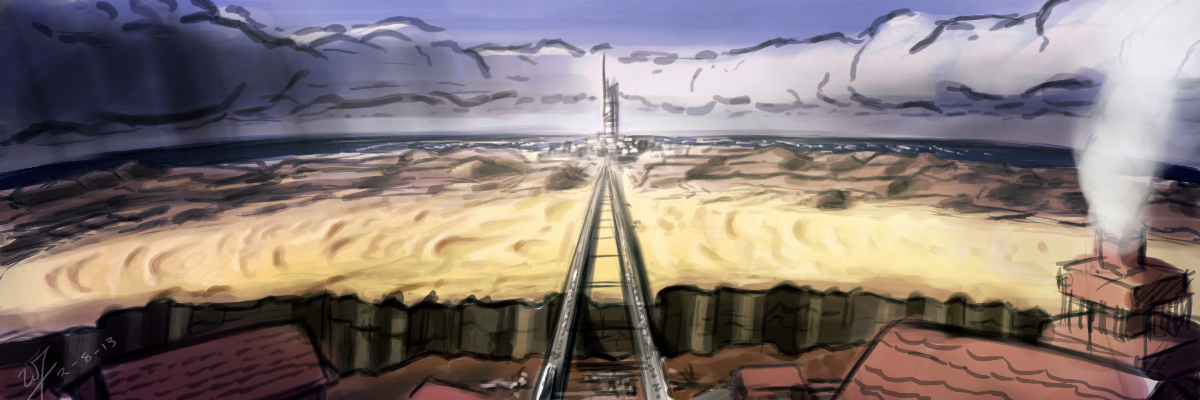
    Project Nebula | Desert Coast City Concept

    Desert to ocean_web

    I won’t be able to get a weekly sketch review together this week.  I have been swamped with finishing up Josh the Whale, and getting near future projects organized.


    Luckily, with the spare time that I made today, I was able to get something together for the blog, and just break away from the paper work that I have been focusing so much on lately.

    Unable to give any details in copy at the moment, but I had this image in my head since I have had conversations with Ryan Thatcher about the world our next project will take place in.  And, well…  That’s about all I can say without given too much away.

    Enjoy the video, and look forward to some good news in the future.  We will be releasing Josh the Whale soon, and deciding on the next five months or work for Thor Media LLC.

  • Weekly Sketch Review | Environments

    Weekly Sketch Review | Environments

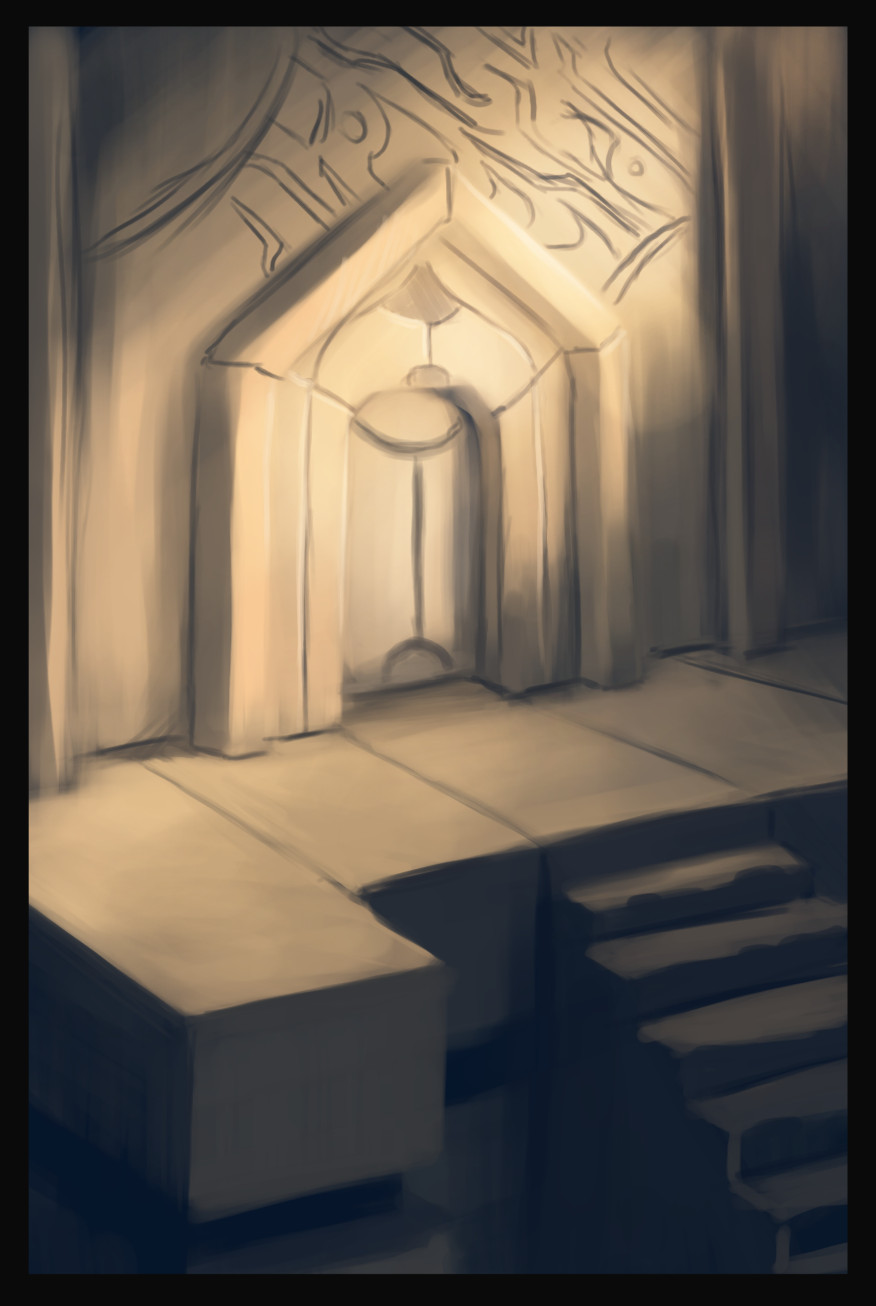
    observatoryunderground bridgeancient doorway


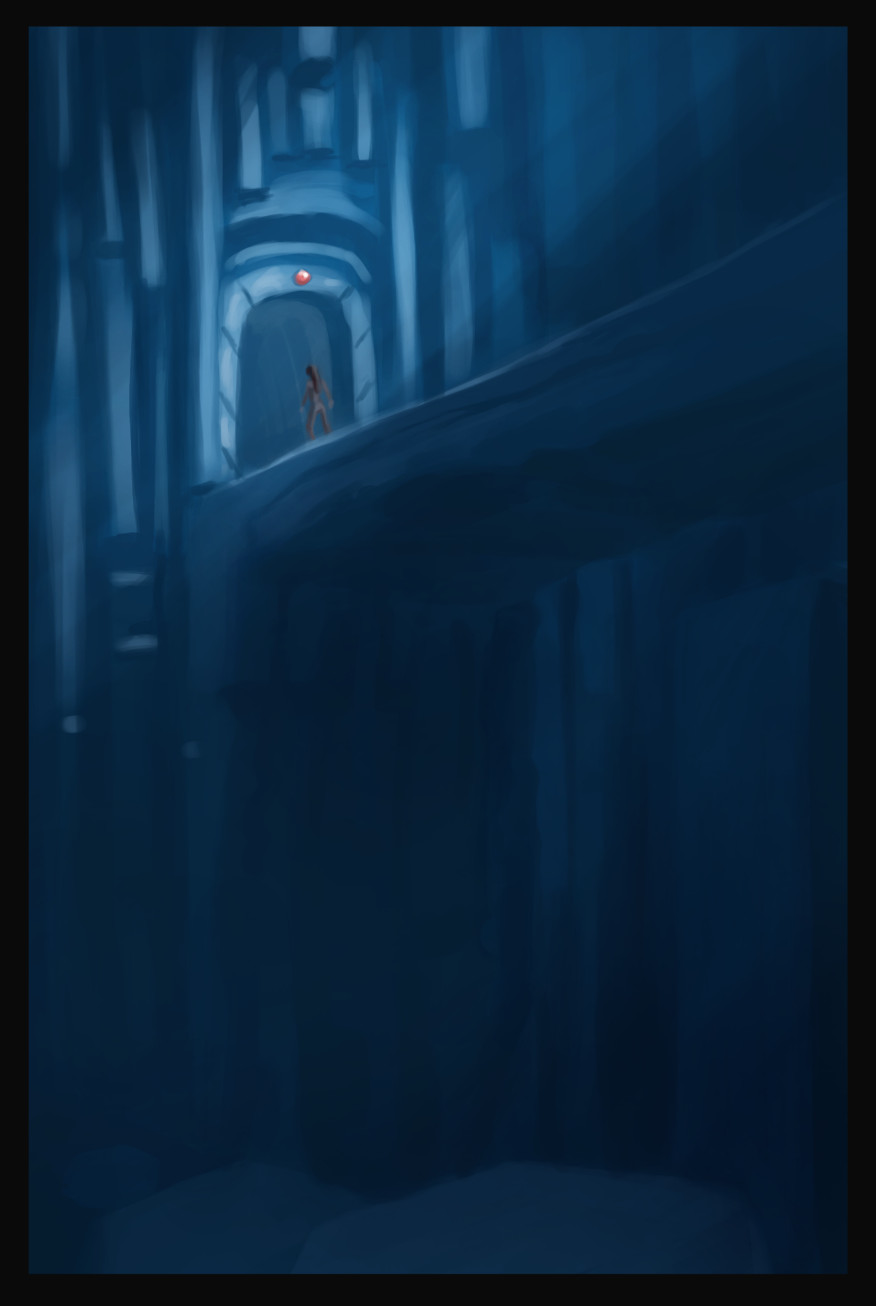
    I had some time this week to do some environment paintings/drawings for project Nebula.  And it has been great to have a project like this to help motivate me to do these sketch reviews.

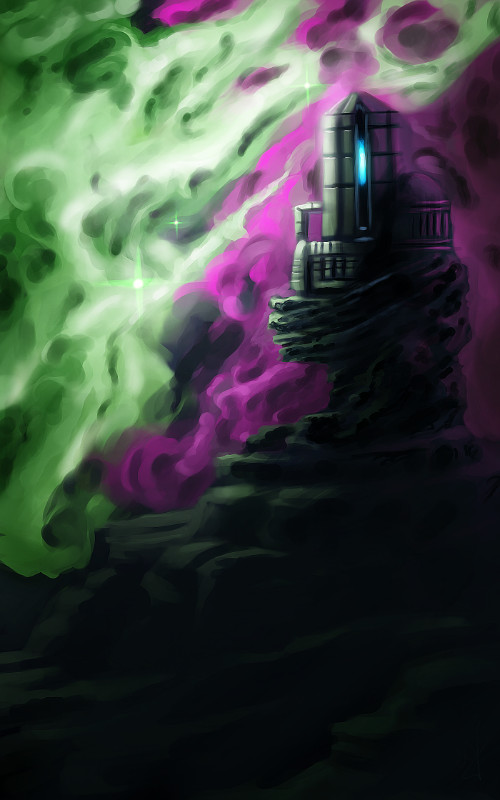
    I really enjoy the nebula painting, above and to the left. I like the composition, plus it gets a unique idea across to the viewer. The other two paintings, I don’t know. It was fun to play with a monochromatic blue values. But the painting doesn’t really stick out.


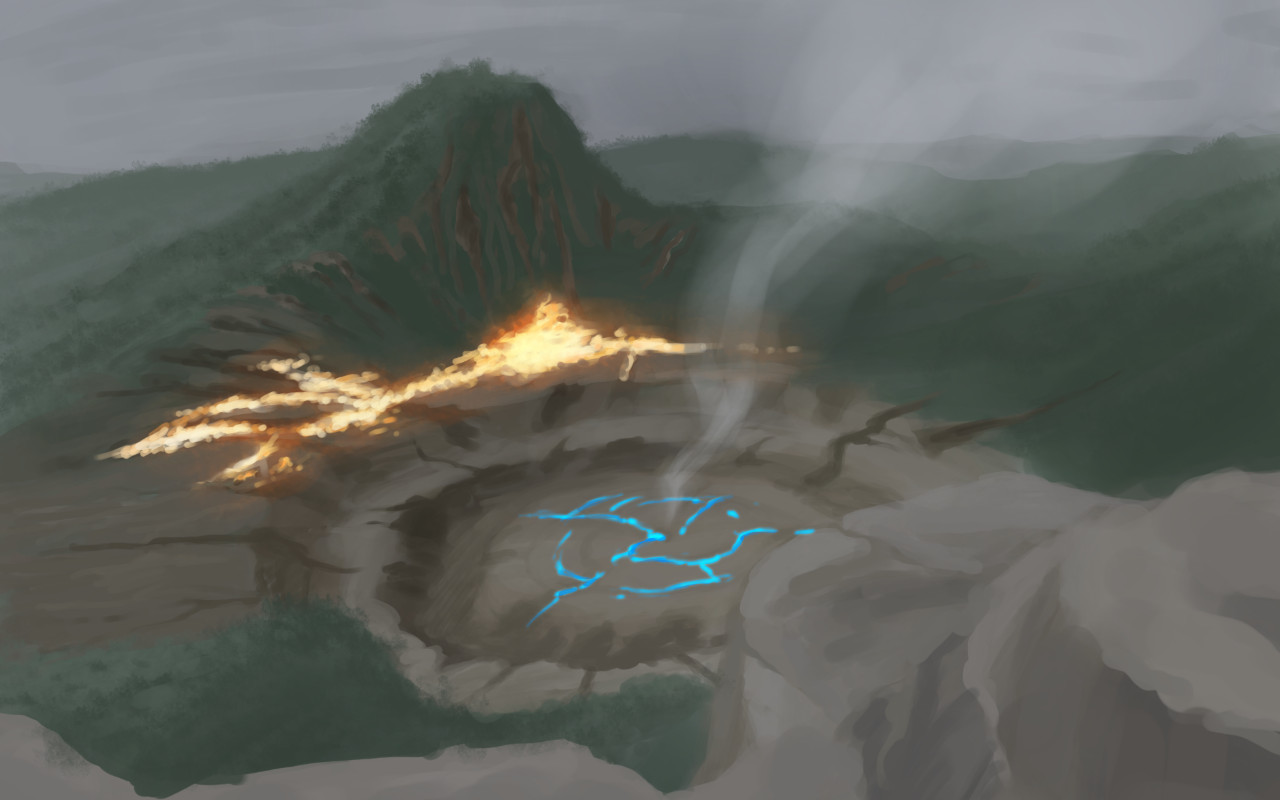
    aftershock

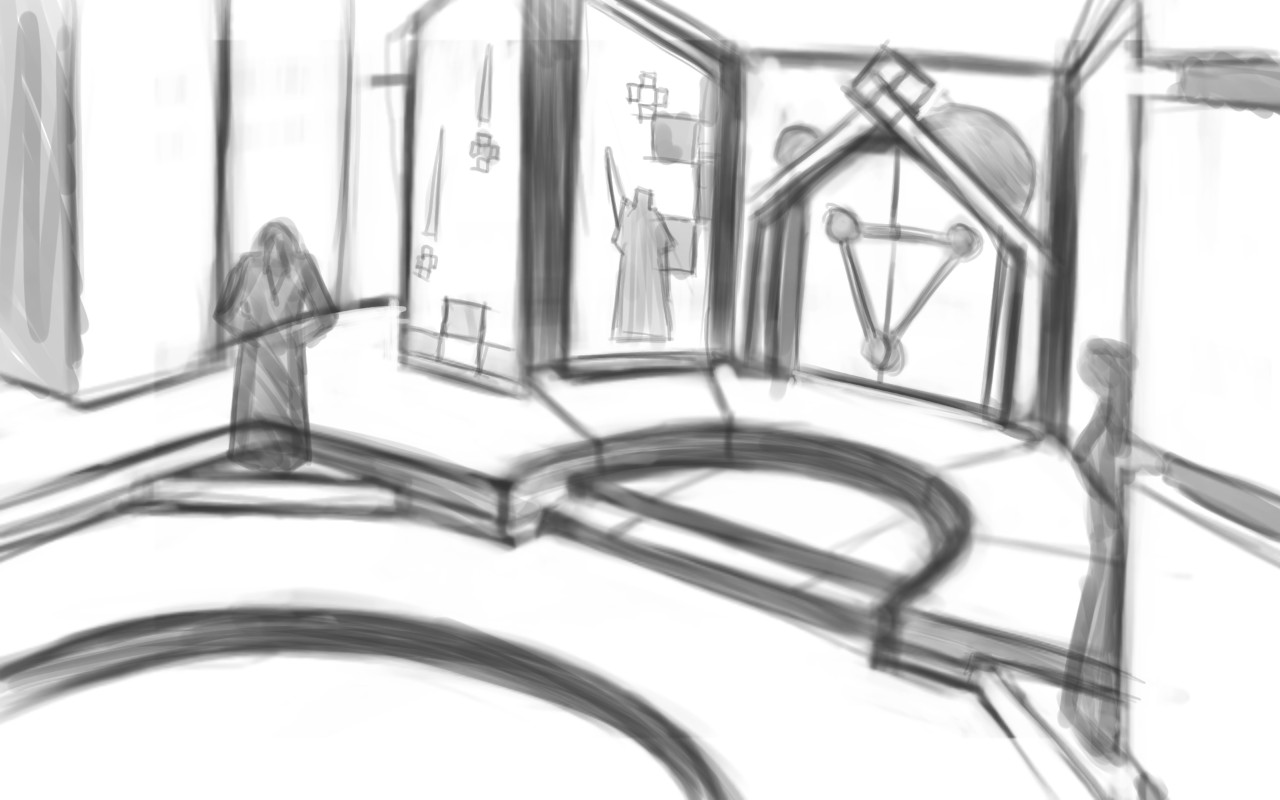
    I have the feeling, when I am painting environments, that I don’t know quite where I am going with it. This isn’t a new feeling, but it tells me a few things.portal room

    I need lots of practice in this area. Been focusing too much on characters over the last while. This project is definitely going to stretch me though.

    It also tells me I need to do more research. Research always comes in handy when broadening your skills and imagination. Whether you are looking at other artist’s paintings, photographs, or going outside. Studying others examples can be the best way to learn. And also add a few things to that bag of tricks of yours.

    Next week’s sketch review will probably be more of the same. I am having a hard time eyeballing perspective, so, I think that I will focus on line drawing, to avoid being distracted by color and lighting.


    I wish I had the mind to record all of these paintings, but here are a few of them, sped up, for your enjoyment.

  • Project Nebula | Character Concept

    Project Nebula | Character Concept

    Been hard at it the past few days.  We have a good rough of Josh the Whale finished, just waiting on music before we start the polishing stage.  Really looking forward to topping that project off.

    Also, I have been doing allot of concept work for Project Nebula.  Been working with Ryan to work out world details, and a little bit of character design.

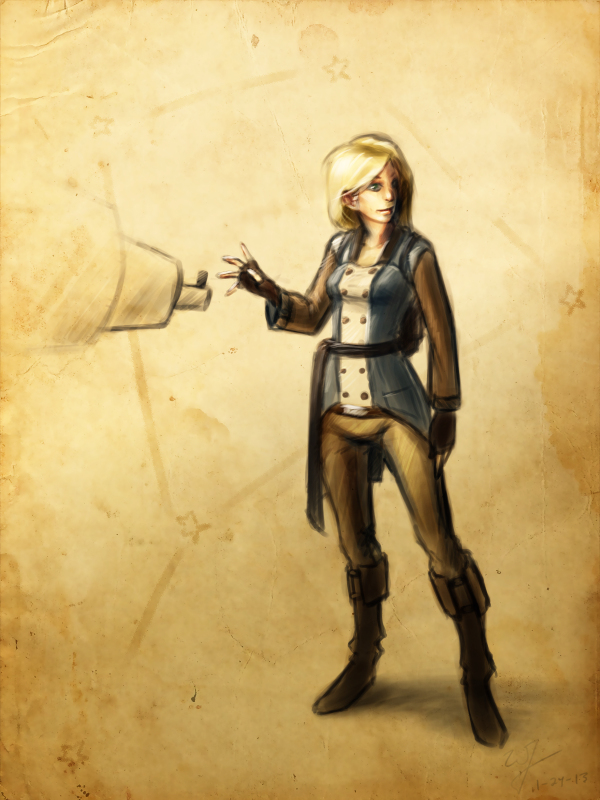
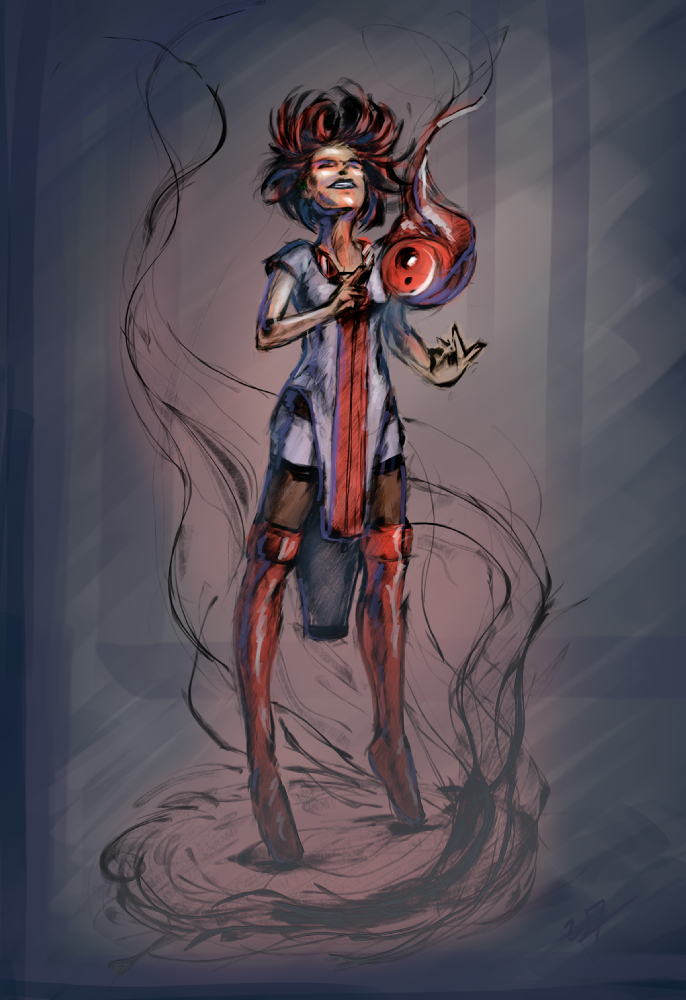
    Speaking of which.  This design is mostly Ryan’s, but I adjusted some of the ideas, seeing where it would take me.  I also took the time to put together a time lapse video, something that I regrettably haven’t done in a while.

    I love to look back on my processes.  Most of the time during painting, it is a blur.  I can’t distinguish one moment from the next.  So recording it, and comparing my technique to previous paintings is fun, as well as enlightening.

  • Krita | Character Sketch

    Krita | Character Sketch


    I have been seeing allot of stuff done in Krita lately.  Also, I have been reading allot about over at David Revoy’s blog.  And I finally took the time to get into it and learn some things.  And my initial impressions are good.

    The brush engine is fantastic.  It’s fun to just go in and play around with the variety of brushes and different effects.

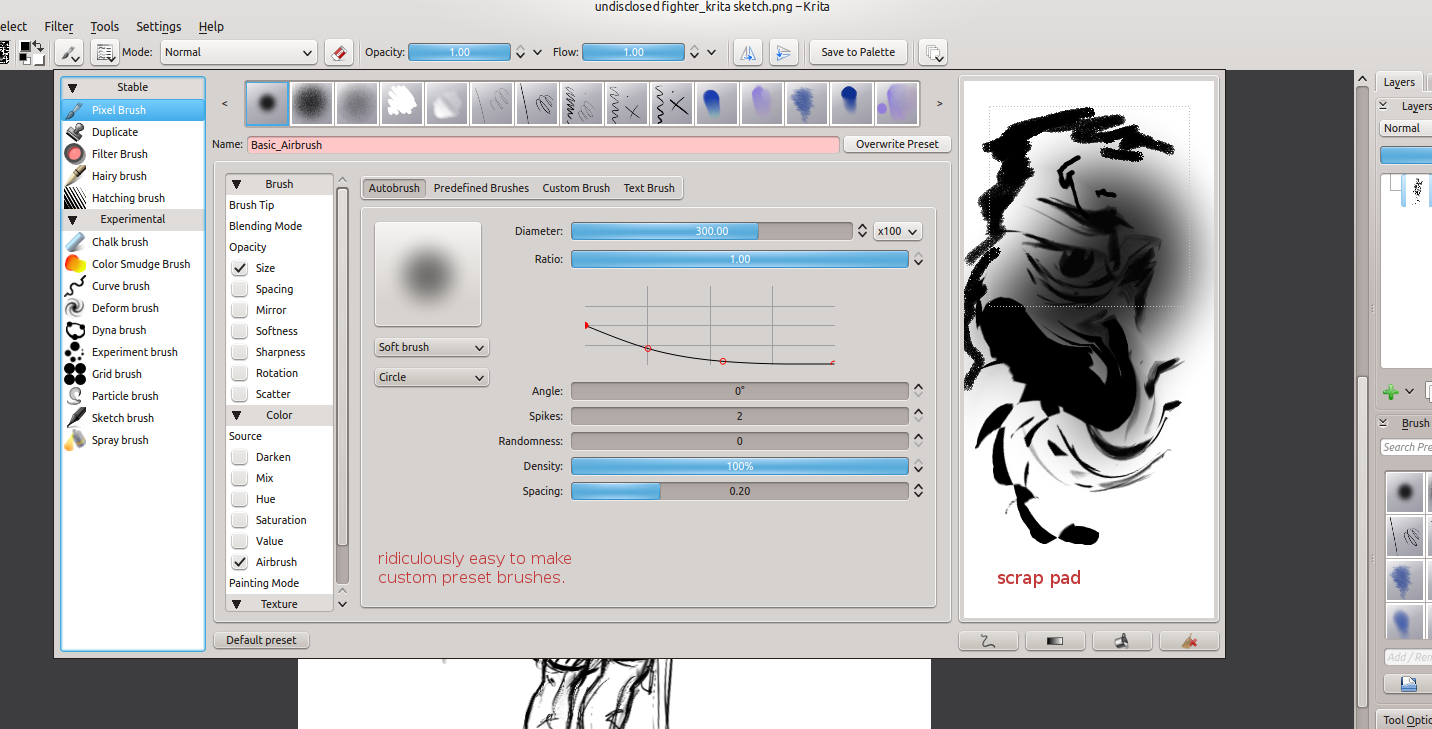
    One of the things I liked the most about Krita was the little sketch pad they have in the “Edit Brush Settings” dialog.  With the wide variety of tools, it’s good to have something that you throw a line down on, to see how it will look on your canvas, without having to actually put it on your canvas.

     Plus, this is almost a necessity with this program, because this dialog takes up a good portion of the screen, and to go in and out of this dialog would take allot of time if you could only test tools on the canvas.  This also feels great for those who work with real mediums, as artists will often test a stroke, color, or tool on a separate scrap piece before painting or drawing on the actual artwork.

    Shift+left-mouse-buton dragging for brush size is invaluable, and saves allot of time in the long run.  I wish the Gimp had functionality like this.  But I understand why it doesn’t.  This also reduces the interface.

    Another leg-up that Krita has over Gimp is multiple color depths.  Most concept artists, or illustrators will never use over 16 bit, but since I get into the film and 3D stuff every once in a while, it’s comforting to know that I will be able to work with 32 bit images on an open source platform.  Gimp will be getting this functionality soon enough, but for now Krita is the only user friendly way of handling 32 bit images on the open source platform right now.

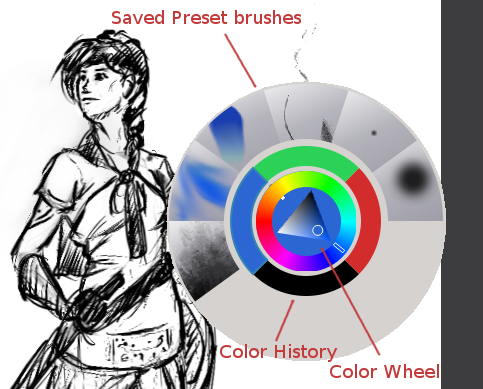
    The last thing that really stuck out was the right-mouse-button menu.  This brings up a color wheel and color history.  Also, you can save preset brushes to this menu, making it faster to get to the brushes you will be using often on a given piece of art.

    I have only scratched the surface of what this program can do for the concept artist or illustrator.  But I see myself using this program, along with the Gimp, to do my illustration work in the future.

  • Josh the Whale | Level Design and Creation

    Josh the Whale | Level Design and Creation

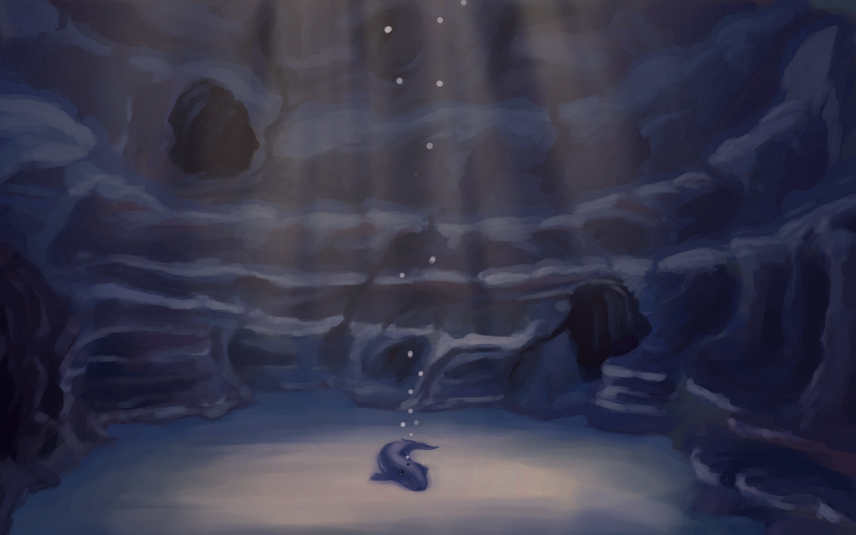
    Josh the Whale is moving along nicely.  Bryce is figuring out the new engine and we have already put together some proof of concept work.  While he’s figuring out how to get this all put together in an application, I am trudging forward, getting other areas of the game designed and finished.

    This is a time lapse video of the cave entrance where a few pages if the book will take place.  This video is especially long because all the interface  movement would be too distracting if I compressed it down to 4 minutes.  So, if you don’t want to spend 20 minutes watching this video, watch for about 1 minute and then skip ahead 5 minutes, this will give you a good feel for the whole process.

    As you can see, the difference between the concept art and the finished result is dramatic. And I predict that there will be more changes in the future, as we test on different platforms.  This is partly because of my lack of planning, but also because plans change as you continue to consider your market and what ideas you wish to express visually within the story.

    And there are also limits with polygon count amount other things.  I try to avoid thinking that way when doing this kind of work, because even with restrictions you can usually get what you want out of it, if not stubble upon a few good things you wouldn’t have seen without the restrictions.

    The processes that I go through to hash out these designs are simple:


    Brainstorm and Sketches (What colors, what environments, visual style)

    Concept art  (Hardest part, because you are trying to develop a visual style and language that best fits the idea)

    3D’ize  the Ideas (Modeling, Texturing, Rigging, Animating, and other asset creation)

    Troubleshooting (testing to make sure that the colors are sending the right visually messages, the main character sticks out enough, etc.  Often the longest part of the job)


    It’s allot of work, and can be very daunting when you first approach it.  But as the artwork comes, the assets get animated, and those assets are placed into an interactive state, it can be very exciting and encouraging.

    I will continue posting about this app, since it looks like we are still a good month away from a final product.  But I do have other things lined up.

    I am currently putting together a personal project video series, that should carry on for a few months.  I got a few ideas in mind on things I might be able to contribute from my limited experience.  And placing some of that experience into a fun video series will help keep me motivated in my work, and hopefully motivate some of you as well.

  • Sea Fire | Personal Illustration

    Sea Fire | Personal Illustration

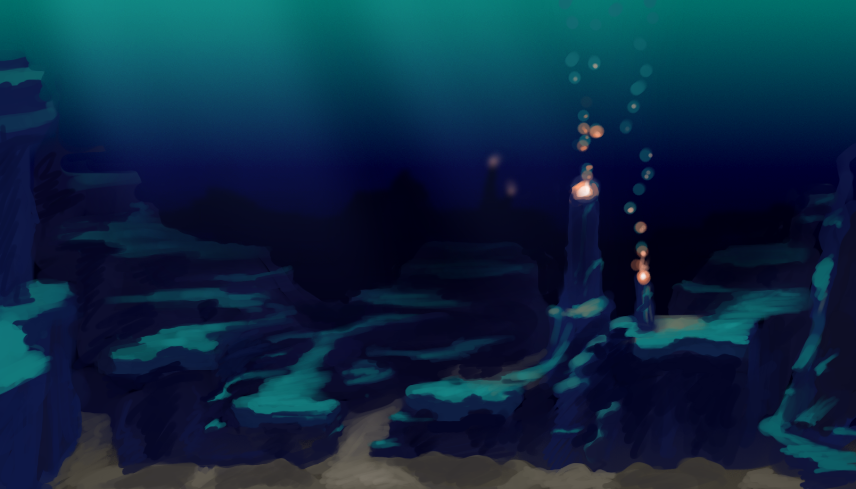
    Another illustration. Inspired by all of the underwater stuff that I have been doing lately. Plus, I have been thinking of these colors quite a bit lately, since it is similar to the color scheme of my website.

    For anyone that might be interested in what I use to record my desktop, and how I go about editing. I use a simple bash script with ffmpeg to record. Nothing too fancy. The script records at 24 frames a second into an h.264 codec, keeping the file size small. But whats special about this script is that it records for 7 minutes, saves that file, and then starts recording again to a different file. It names the files acording to the date and time they were created. Here is the script.

    while :

    do

    ffmpeg -f x11grab -r 12 -s 1920x1080 -i :0.0 -vcodec libx264 -vpre lossless_slower -threads 2 -vframes 5000 /media/Wills\ External\ Hardrive/Desktop\ Recording/output_`date +'%Y%m%d_%H%M%S'`.avi

    sleep .25

    done

    The problem with recording to video is that if you are recording for an hour or two, and ffmpeg crashes, you lose that entire recording. And there usually isn’t anyway to recover that data. This is a problem I ran into several times, and it ruined a few paintings because I would just get frustrated from losing all that recorded work.  Making a consistent time lapse video impossible.

    But, if you record in shorter segments, for example 7 minutes, then you can never lose more than 7 minutes of work. This takes my mind off of worrying about my recording so I can just focus on painting.

    Right now the script is setup for Linux, but I believe it can be easily adapted for Windows.